Use Settings search to find Font size or Display size without depending on one manufacturer’s menu wording.
Follow along your way
Choose pictures, written steps, or video.
Phone
Android
Time
About 2 minutes
Reviewed
August 31, 2026
Before you start
Keep your Android phone nearby and unlocked.
Read one action, then try only that action.
Your wording may vary slightly by model, region, carrier, or account state.
If Settings is not where the picture shows it, swipe up for all apps and search for “Settings.”
Your screen may differ: Samsung, Pixel, Motorola, and carrier versions may place this under Display or Accessibility. Settings search is the most reliable shared path.
Interactive visual guide
Step 1 of 4
Step 1 of 4.
Do this now
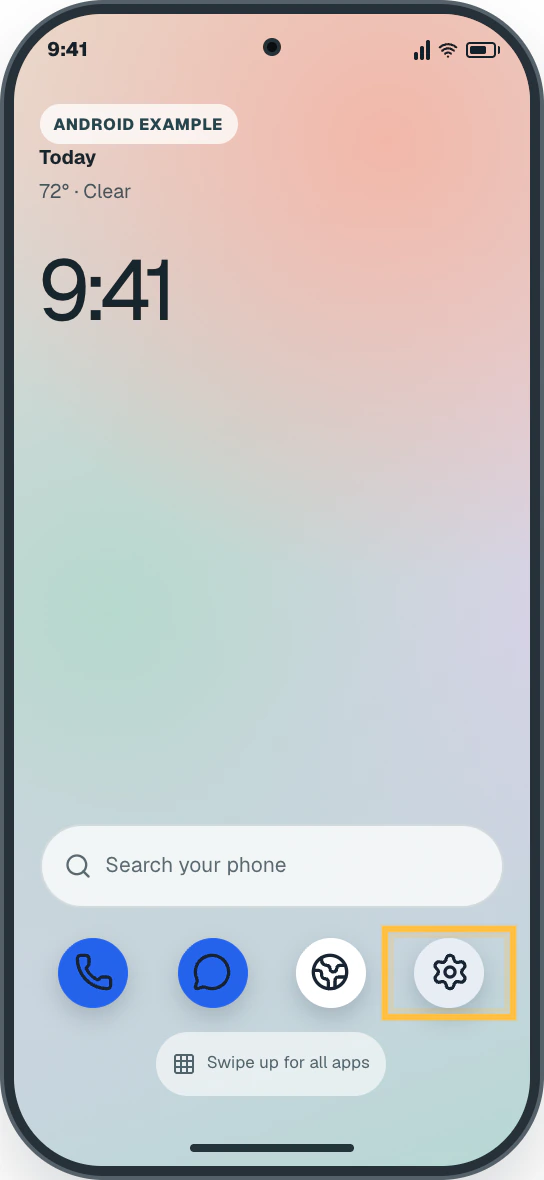
Open Settings
Open your app list and tap Settings.
✦ Original Android example — not a manufacturer screenshot
9:41
Android example
Today72° · Clear
9:41
Search your phone
Phone
Messages
Chrome
Settings
Swipe up for all apps
This original visual follows the verified path. Labels can vary slightly by model, region, carrier, or device state.
Show written steps
Open Settings. Open your app list and tap Settings. The main Settings list opens.
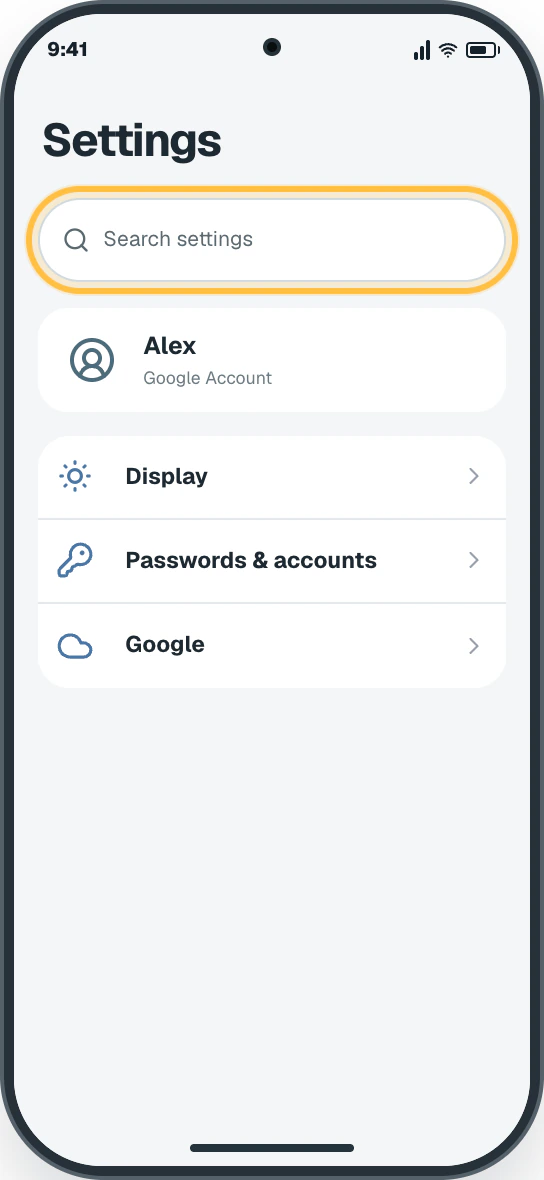
Search for Font size. Tap the search button in Settings and type “Font size.” A result named Font size, Font size and style, or Display size and text appears.
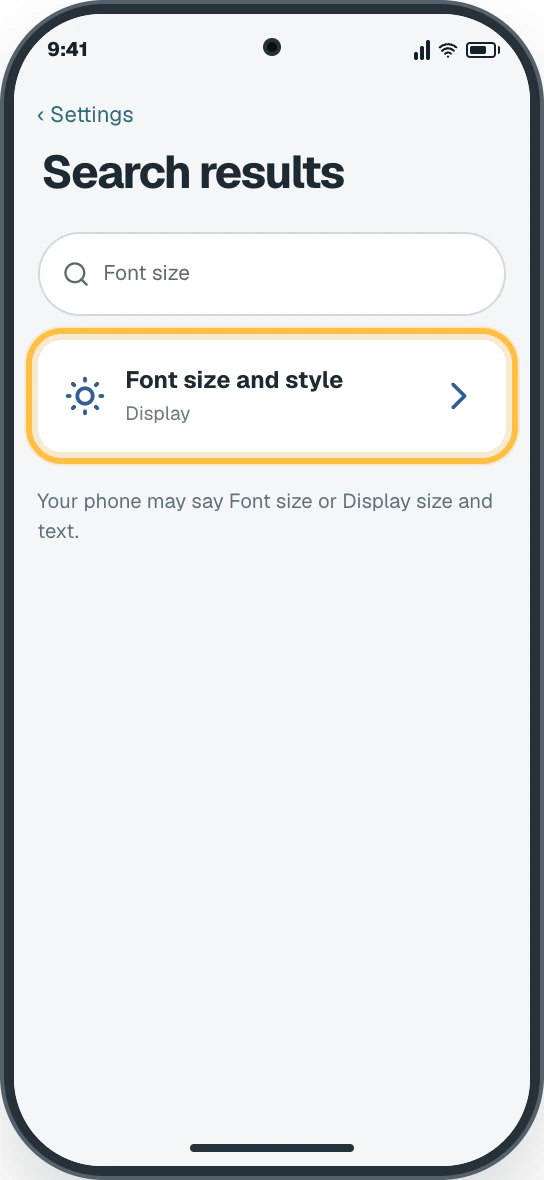
Open the matching result. Tap Font size, Font size and style, or Display size and text—use the matching label shown on your phone. The text-size controls open.
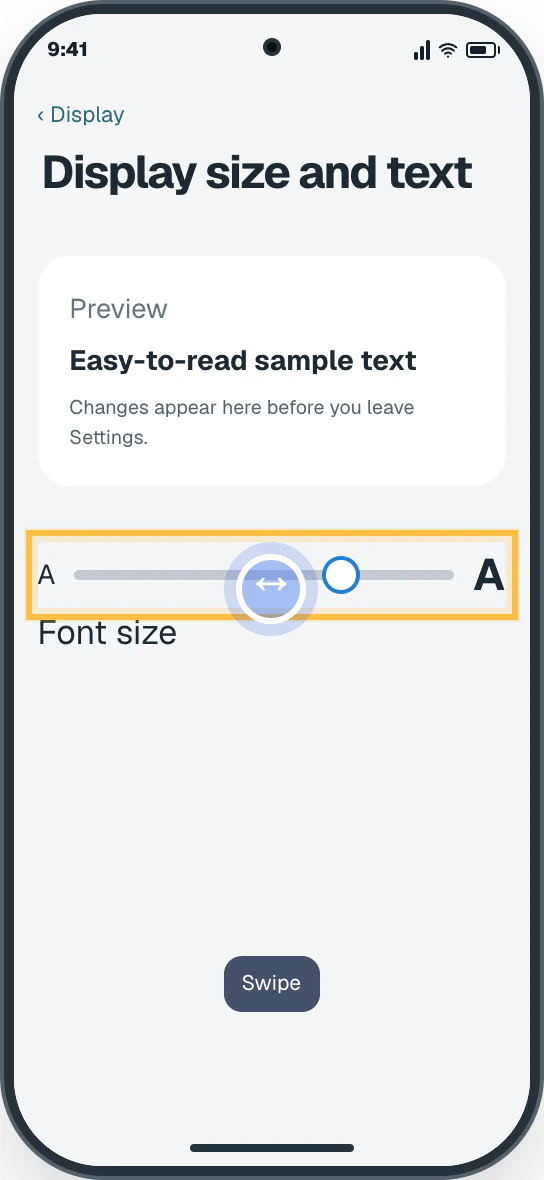
Choose a comfortable size. Move the Font size slider to the right. The preview words become larger.
Watch it happen
Helpful video
The video is optional. YouTube will not load until you choose Load video.
Load the video when you are ready
YouTube stays disconnected until you choose this button. The written steps work without the video.
Verified tutorialChecked August 31, 2026Creator-edited English captions
How to adjust your text and display settings
Published by Guide Dogs. Shows the text and display controls clearly. Menu names can vary by phone maker.
Watch directly on YouTube If the video does not load here, the direct link opens the same tutorial on YouTube.
Android · 4 clear steps
Follow the steps
Read one step, try it on your phone, then move to the next.
Step 1
Open Settings
Open your app list and tap Settings.
You should now see: The main Settings list opens.
Easy Phone Tech visual example. Personal details are fictional; exact wording can vary.Open a larger picture
Step 2
Search for Font size
Tap the search button in Settings and type “Font size.”
You should now see: A result named Font size, Font size and style, or Display size and text appears.
Easy Phone Tech visual example. Personal details are fictional; exact wording can vary.Open a larger picture
Step 3
Open the matching result
Tap Font size, Font size and style, or Display size and text—use the matching label shown on your phone.
You should now see: The text-size controls open.
Easy Phone Tech visual example. Personal details are fictional; exact wording can vary.Open a larger picture
Step 4
Choose a comfortable size
Move the Font size slider to the right.
You should now see: The preview words become larger.
Easy Phone Tech visual example. Personal details are fictional; exact wording can vary.Open a larger picture
My screen looks different
That is normal. Phone makers sometimes move or rename a setting.
Look for Font size, Font size and style, or Display size and text.
Use Settings search if the Display or Accessibility menus look different.