Check the normal update requirements first, then use Motorola’s official Software Fix only as a last resort.
Follow along your way
Choose pictures, written steps, or video.
Phone
Android
Time
About 10 minutes to check
Reviewed
August 31, 2026
Before you start
Connect to Wi-Fi.
Charge above 50% or plug the phone in.
If Settings is not visible, swipe up for all apps and search for “Settings.”
Do not choose Rescue or erase options during these first checks.
Your screen may differ: Motorola Software Fix on a Windows computer can erase data when Rescue is used. Back up first and use it only after ordinary checks fail.
Interactive visual guide
Step 1 of 3
Step 1 of 3.
Do this now
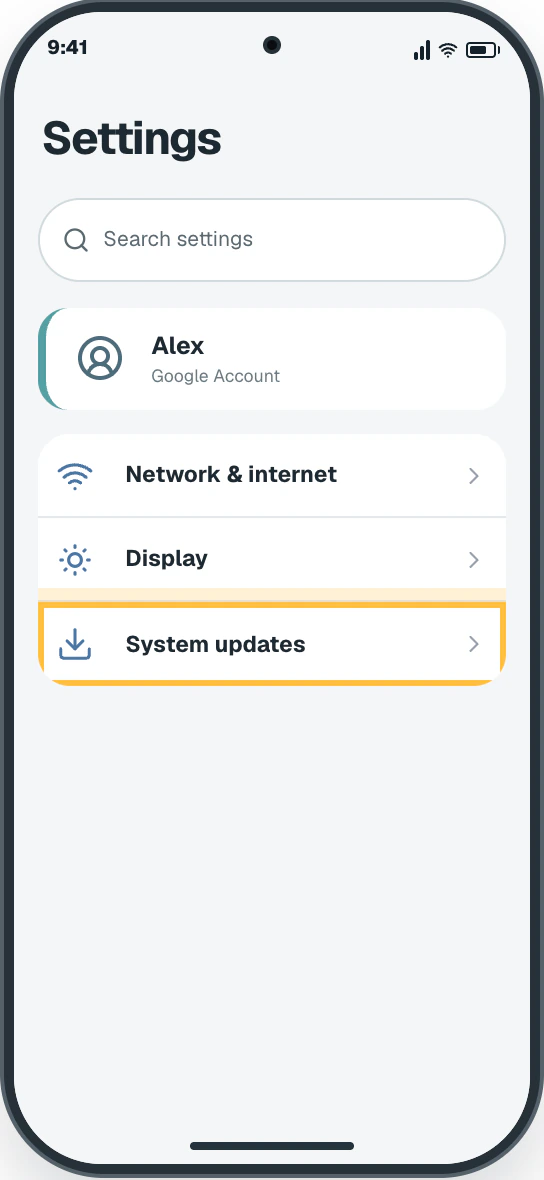
Open System updates
In Motorola Settings, tap System updates.
✦ Original Motorola example — not a manufacturer screenshot
9:41
Settings
Search settings
AlexGoogle Account
Network & internet
Display
System updates
This original visual follows the verified path. Labels can vary slightly by model, region, carrier, or device state.
Show written steps
Open System updates. In Motorola Settings, tap System updates. The Motorola update screen opens.
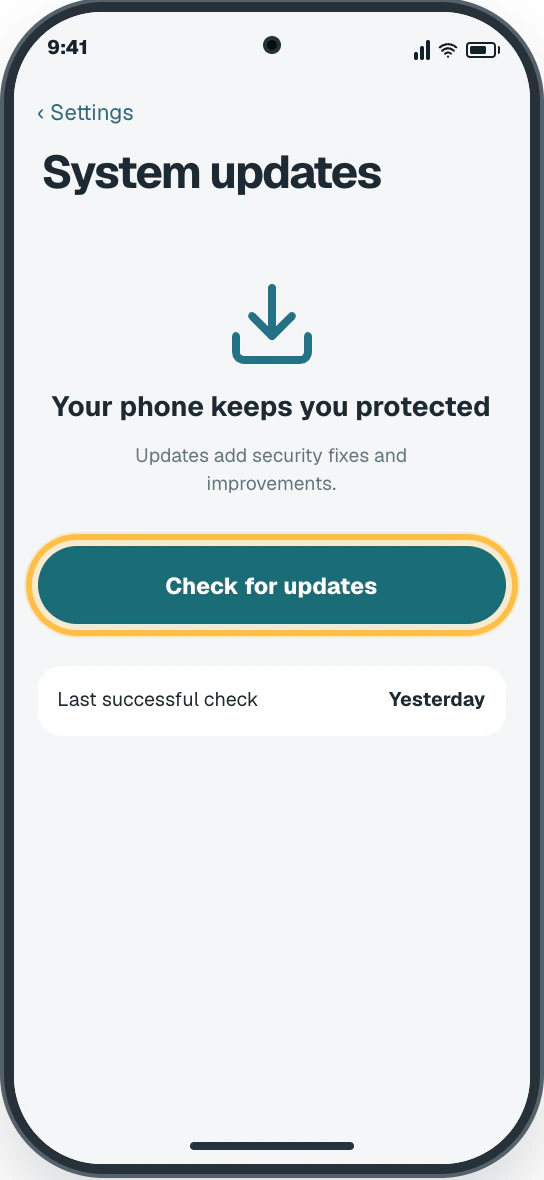
Check again in Settings. Tap Check for updates. Motorola checks the server for your exact model.
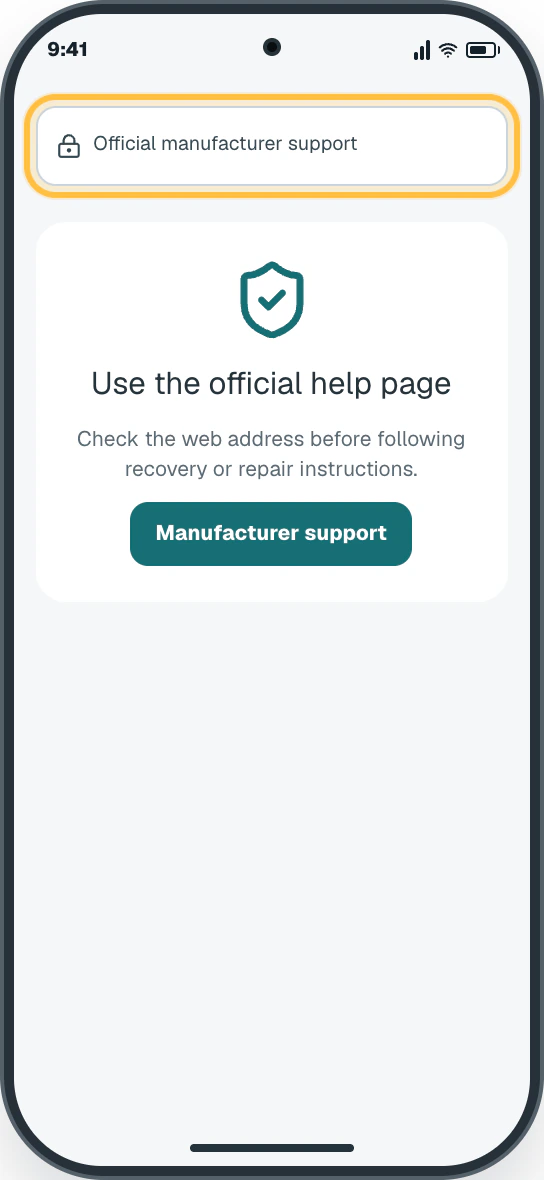
Use official help if it still fails. Open Motorola Support from the source link below. Treat Windows Software Fix or Rescue as a last resort because Rescue can erase the phone. The official Motorola Support page opens with recovery choices.
Watch it happen
Helpful video
The video is optional. For this safety-sensitive topic, it is available only through the clearly labeled direct YouTube link.
Written steps are the safe starting point
The video includes Motorola Rescue, which can erase the phone, so it is direct-link only. Use the safe written checks first. A direct YouTube link is available below for context.
Official help videoChecked August 31, 2026Creator-edited English captions
Update, recover, or fix software on a Motorola phone
Published by Motorola Support. Shows Motorola’s official last-resort Software Fix tool. Rescue can erase the phone, so use the written safe checks first.
Watch directly on YouTube For safety, this tutorial is direct-link-only and is not embedded on this page.
Android · 3 clear steps
Follow the steps
Read one step, try it on your phone, then move to the next.
Step 1
Open System updates
In Motorola Settings, tap System updates.
You should now see: The Motorola update screen opens.
Easy Phone Tech visual example. Personal details are fictional; exact wording can vary.Open a larger picture
Step 2
Check again in Settings
Tap Check for updates.
You should now see: Motorola checks the server for your exact model.
Easy Phone Tech visual example. Personal details are fictional; exact wording can vary.Open a larger picture
Step 3
Use official help if it still fails
Open Motorola Support from the source link below. Treat Windows Software Fix or Rescue as a last resort because Rescue can erase the phone.
You should now see: The official Motorola Support page opens with recovery choices.
Easy Phone Tech visual example. Personal details are fictional; exact wording can vary.Open a larger picture
My screen looks different
That is normal. Phone makers sometimes move or rename a setting.
Stay with the task “Fix a Motorola phone that will not update” and re-read the current action before tapping anything else.
If the named control is missing, open the official source below or search for a different task.