One small goal at a time
Update a Motorola phone
Check for the Motorola software update offered to your exact phone and carrier.
Choose what feels easiest
How would you like to learn?
Change the view at any time. Your phone is never connected to this website.
- Time
- About 5 minutes to check
- Reviewed
- August 31, 2026
Before you start
- Connect to Wi-Fi when possible.
- Charge the phone above 50% or plug it in.
- If Settings is not visible, swipe up for all apps and search for “Settings.”
- Keep enough free storage for the download.
Your screen may differ: The available version and rollout date can vary by phone, carrier, and region.
Read it and see it together
Interactive visual guide
Use Next when you are ready. Replay repeats the visual cue; nothing advances without your choice unless you start Play through.
Step 1 of 3.Do this now
Open Settings
Tap Settings on the Home screen.
✦ Original Motorola example — not a manufacturer screenshot
Motorola exampleToday72° · Clear
9:41
This original visual follows the verified path. Labels can vary slightly by model, region, carrier, or device state.
Show written steps
- Open Settings. Tap Settings on the Home screen. The Motorola Settings list opens.
- Open System updates. Tap System updates. On an older model, you may need System first. The Motorola update screen opens.
- Check for an update. Tap Check for updates, then follow the status Motorola shows. The phone reports whether an update is ready.
Watch it happen
Helpful video
The video is optional. YouTube will not load until you choose Load video.
Load the video when you are readyYouTube stays disconnected until you choose this button. The written steps work without the video.
Verified tutorialChecked August 31, 2026Automatic English captions
How to update your Motorola phone
Published by YourSixStudios. Shows a current Motorola over-the-air update path, including power, storage, download, and install.
Watch directly on YouTube If the video does not load here, the direct link opens the same tutorial on YouTube.One small goal at a time
Follow the steps
Read one step, try it on your phone, then move to the next.
Step 1Open Settings
Tap Settings on the Home screen.
You should now see: The Motorola Settings list opens.
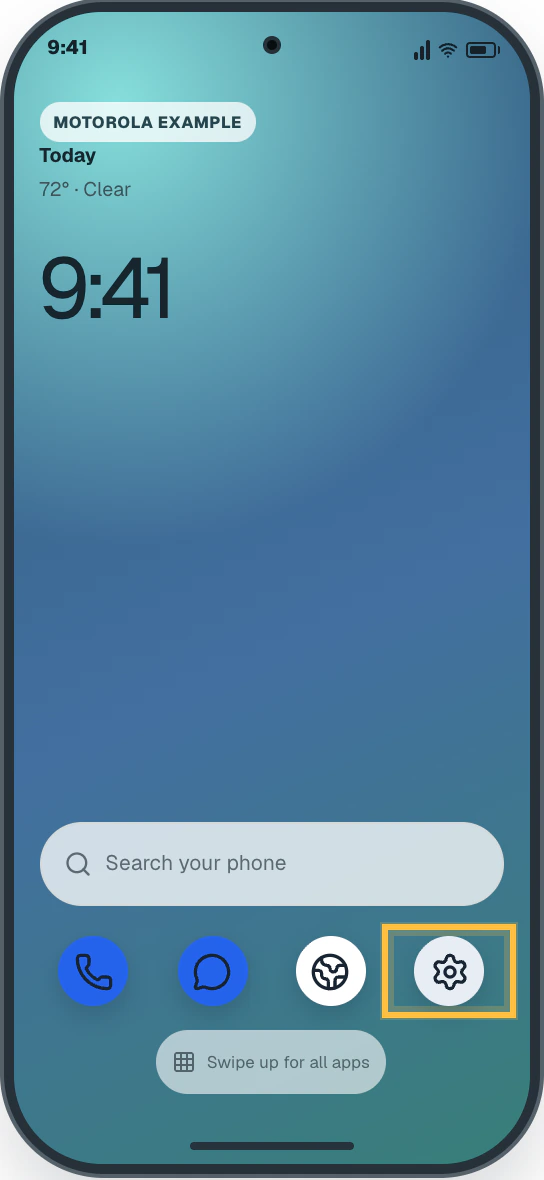 Easy Phone Tech visual example. Personal details are fictional; exact wording can vary.Open a larger picture
 Step 2Open System updates
Tap System updates. On an older model, you may need System first.
You should now see: The Motorola update screen opens.
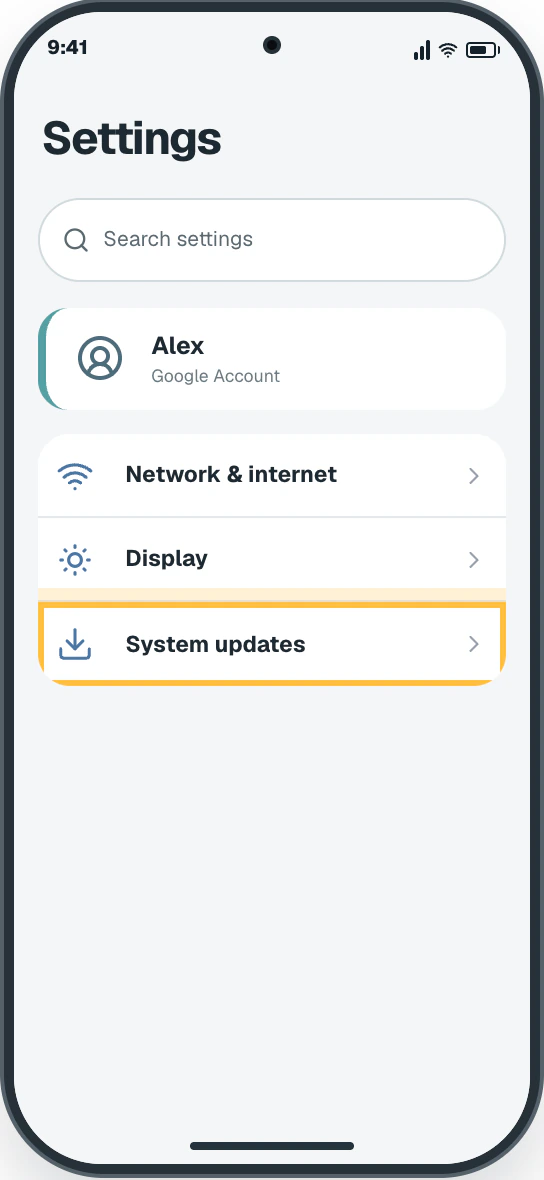 Easy Phone Tech visual example. Personal details are fictional; exact wording can vary.Open a larger picture
 Step 3Check for an update
Tap Check for updates, then follow the status Motorola shows.
You should now see: The phone reports whether an update is ready.
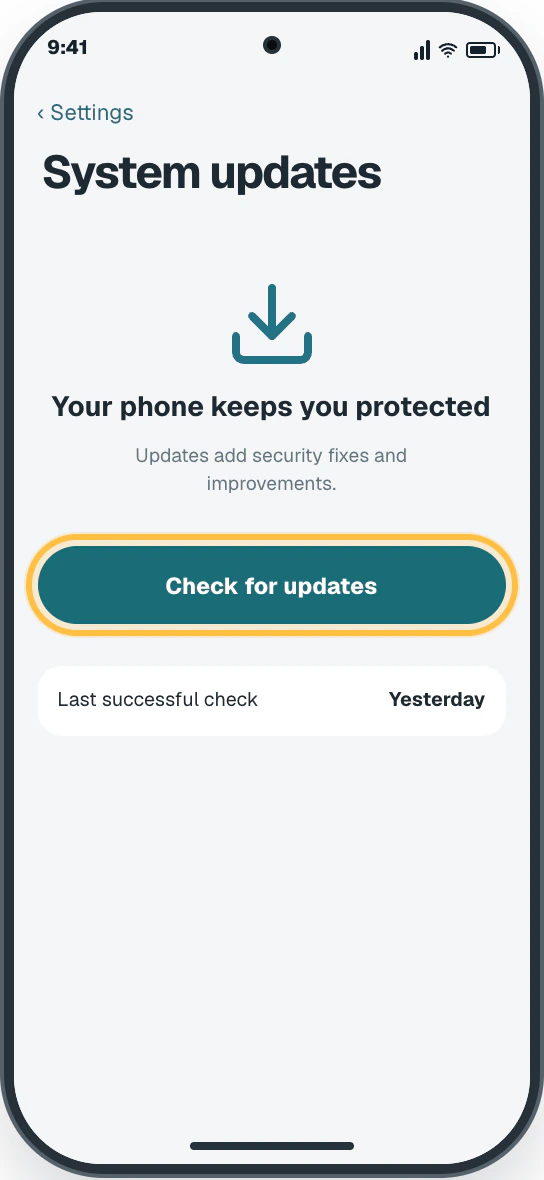 Easy Phone Tech visual example. Personal details are fictional; exact wording can vary.Open a larger picture
My screen looks different
That is normal. Phone makers sometimes move or rename a setting.
- On most Motorola phones, use Settings → System updates.
- Some models use Settings → System → Advanced → System updates, then Check for updates.
Open the official help page Sources and review details
Modern Motorola phones · Current Motorola Android software · Reviewed August 31, 2026
Step images are original Easy Phone Tech visual examples based on the cited paths. They are not manufacturer screenshots.
Check the result
Did this solve it?