Removing an account from the phone also removes its synced email, contacts, and settings from that device.
Follow along your way
Choose pictures, written steps, or video.
Phone
Android
Time
About 3 minutes
Reviewed
August 31, 2026
Before you start
Keep your Android phone nearby and unlocked.
Read one action, then try only that action.
Your wording may vary slightly by model, region, carrier, or account state.
If Settings is not where the picture shows it, swipe up for all apps and search for “Settings.”
Your screen may differ: Samsung may also show a separate Samsung account; this guide covers the Google Account used by Android and Google apps.
Interactive visual guide
Step 1 of 3
Step 1 of 3.
Do this now
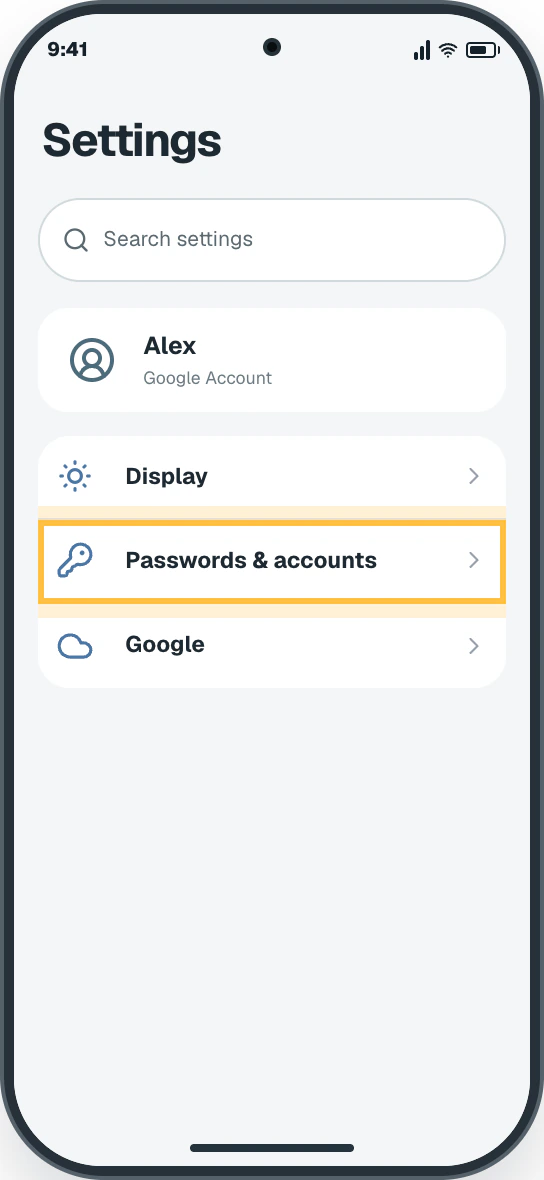
Open account settings
In Settings, tap Passwords & accounts, Accounts, or Accounts and backup.
✦ Original Android example — not a manufacturer screenshot
9:41
Settings
Search settings
AlexGoogle Account
Display
Passwords & accounts
Google
This original visual follows the verified path. Labels can vary slightly by model, region, carrier, or device state.
Show written steps
Open account settings. In Settings, tap Passwords & accounts, Accounts, or Accounts and backup. A list of accounts on this phone appears.
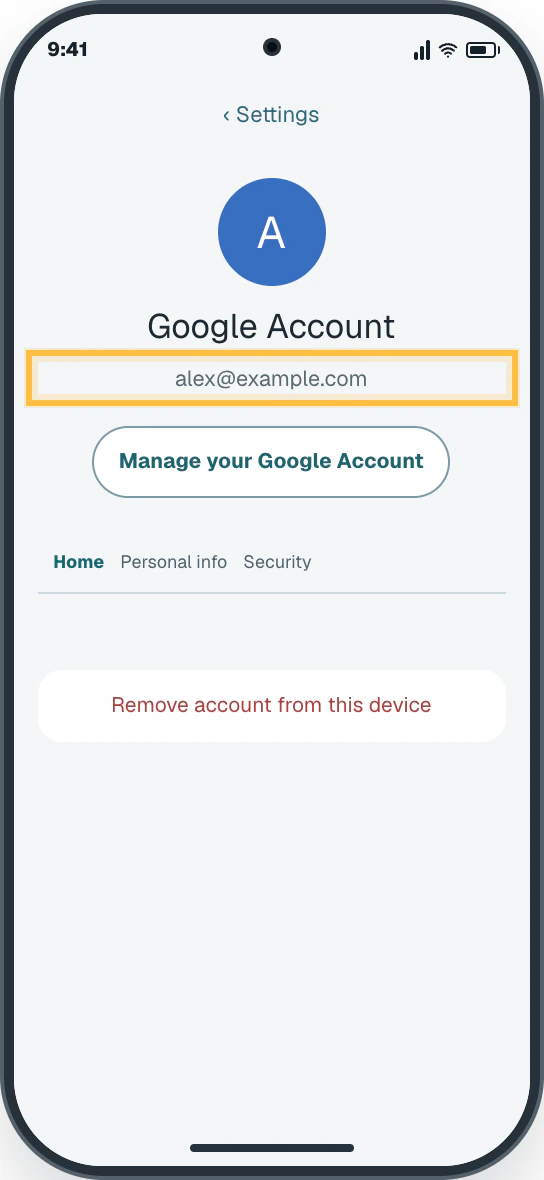
Choose the account. Tap the Google Account email you want to review. The selected Google Account page opens with its email and a Remove account option.
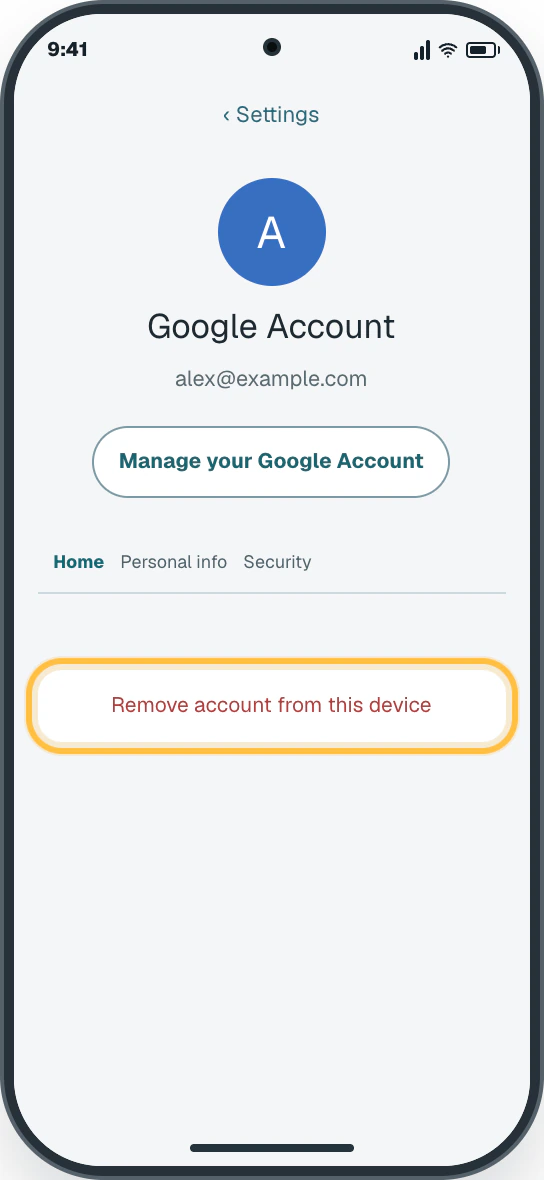
Pause before removing. Use Remove account only when you intend to disconnect that account from this phone. A confirmation warning appears, and the account remains connected until you approve it.
Watch it happen
Helpful video
The video is optional. For this safety-sensitive topic, it is available only through the clearly labeled direct YouTube link.
Written steps are the safe starting point
The video continues into account removal, so it is direct-link only. The written guide stops before confirmation. A direct YouTube link is available below for context.
Verified tutorialChecked August 31, 2026Automatic English captions
How to Log Out of Google Account in 2026
Published by Tech Life Unity. Shows the “Manage accounts on this device” removal path. Read the warning before removing anything.
Watch directly on YouTube For safety, this tutorial is direct-link-only and is not embedded on this page.
Android · 3 clear steps
Follow the steps
Read one step, try it on your phone, then move to the next.
Step 1
Open account settings
In Settings, tap Passwords & accounts, Accounts, or Accounts and backup.
You should now see: A list of accounts on this phone appears.
Easy Phone Tech visual example. Personal details are fictional; exact wording can vary.Open a larger picture
Step 2
Choose the account
Tap the Google Account email you want to review.
You should now see: The selected Google Account page opens with its email and a Remove account option.
Easy Phone Tech visual example. Personal details are fictional; exact wording can vary.Open a larger picture
Step 3
Pause before removing
Use Remove account only when you intend to disconnect that account from this phone.
You should now see: A confirmation warning appears, and the account remains connected until you approve it.
Easy Phone Tech visual example. Personal details are fictional; exact wording can vary.Open a larger picture
My screen looks different
That is normal. Phone makers sometimes move or rename a setting.
Pixel often uses Passwords & accounts.
Samsung usually uses Accounts and backup → Manage accounts. Motorola may say Passwords & accounts or Users & accounts.