Signing out can remove access to synced photos, messages, and other iCloud information on this phone.
Choose what feels easiest
How would you like to learn?
Change the view at any time. Your phone is never connected to this website.
Phone
iPhone
Time
About 3 minutes
Reviewed
August 31, 2026
Before you start
Keep your iPhone nearby and unlocked.
Read one action, then try only that action.
Your wording may vary slightly by model, region, carrier, or account state.
If Settings is not where the picture shows it, swipe down from the middle of the Home Screen and search for “Settings.”
Read it and see it together
Interactive visual guide
Use Next when you are ready. Replay repeats the visual cue; nothing advances without your choice unless you start Play through.
Step 1 of 3
Step 1 of 3.
Do this now
Open your account
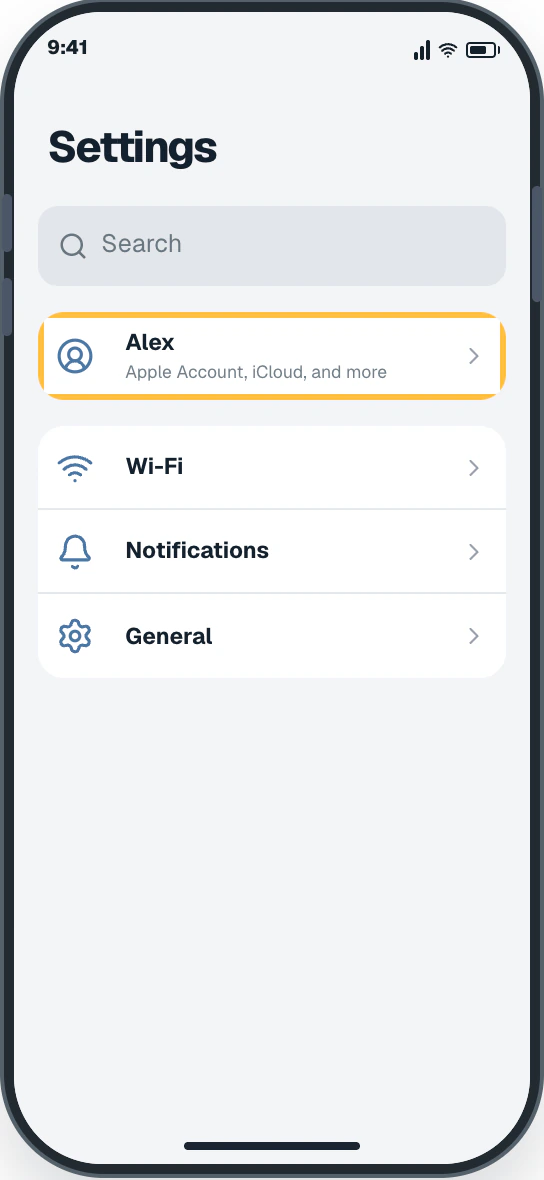
In Settings, tap your name at the top.
✦ Original Modern iPhone example — not a manufacturer screenshot
9:41
Settings
Search
AlexApple Account, iCloud, and more
Wi-Fi
Notifications
General
This original visual follows the verified path. Labels can vary slightly by model, region, carrier, or device state.
Show written steps
Open your account. In Settings, tap your name at the top. Your Apple Account page opens with your account details.
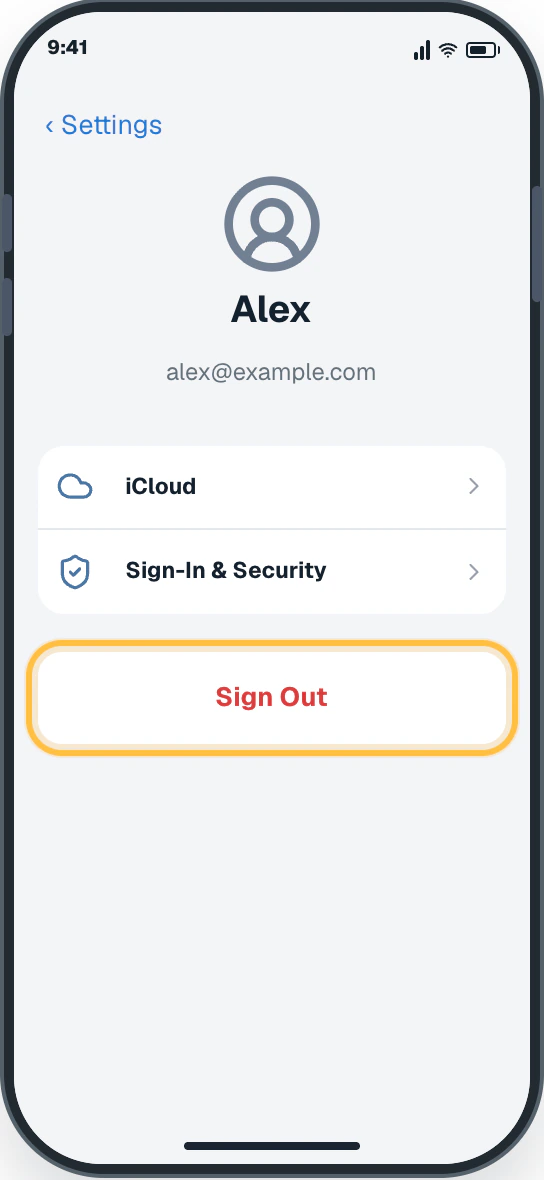
Scroll to the bottom. Move down the account page until you see Sign Out. The Sign Out button is visible at the bottom; nothing has changed yet.
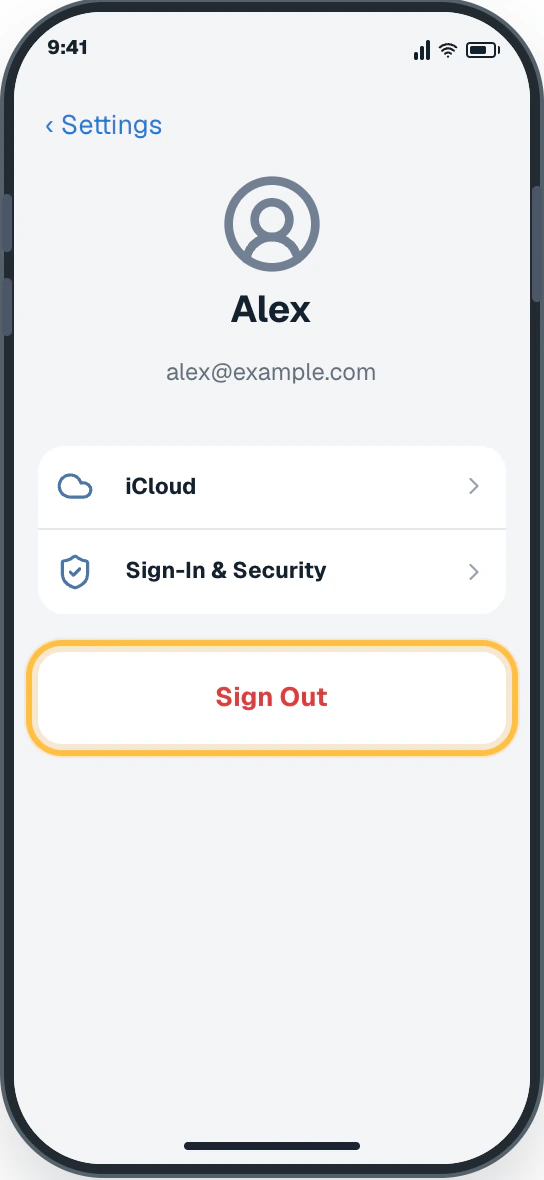
Stop before the destructive choice. Do not tap Sign Out yet. Apple may next ask whether to Erase this iPhone or Sign Out But Don’t Erase, followed by your device passcode or Apple Account password. Get trusted help if you are not sure which data should remain on the phone. Nothing has changed because you have not started the sign-out process.
Watch it happen
Helpful video
The video is optional. For this safety-sensitive topic, it is available only through the clearly labeled direct YouTube link.
Written steps are the safe starting point
The video continues into the final Sign Out action, so it is direct-link only. Use the written guide to stop safely before signing out. A direct YouTube link is available below for context.
Verified tutorialChecked August 31, 2026Automatic English captions
What Happens If You Sign Out Of Apple ID?
Published by Trevor Nace. Explains the consequences before signing out. The video uses Apple’s former account name and an older interface.
Watch directly on YouTube For safety, this tutorial is direct-link-only and is not embedded on this page.
One small goal at a time
Follow the steps
Read one step, try it on your phone, then move to the next.
Step 1
Open your account
In Settings, tap your name at the top.
You should now see: Your Apple Account page opens with your account details.
Easy Phone Tech visual example. Personal details are fictional; exact wording can vary.Open a larger picture
Step 2
Scroll to the bottom
Move down the account page until you see Sign Out.
You should now see: The Sign Out button is visible at the bottom; nothing has changed yet.
Easy Phone Tech visual example. Personal details are fictional; exact wording can vary.Open a larger picture
Step 3
Stop before the destructive choice
Do not tap Sign Out yet. Apple may next ask whether to Erase this iPhone or Sign Out But Don’t Erase, followed by your device passcode or Apple Account password. Get trusted help if you are not sure which data should remain on the phone.
You should now see: Nothing has changed because you have not started the sign-out process.
Easy Phone Tech visual example. Personal details are fictional; exact wording can vary.Open a larger picture
My screen looks different
That is normal. Phone makers sometimes move or rename a setting.
Stay with the task “Understand signing out before you continue” and re-read the current action before tapping anything else.
If the named control is missing, open the official source below or search for a different task.