One small goal at a time
Unlock your iPhone and go Home
The line at the bottom of a modern iPhone is your way Home. Watch the move before trying it.
Choose what feels easiest
How would you like to learn?
Change the view at any time. Your phone is never connected to this website.
- Reviewed
- August 31, 2026
Before you start
- Keep your iPhone nearby and unlocked.
- Read one action, then try only that action.
- Your wording may vary slightly by model, region, carrier, or account state.
Read it and see it together
Interactive visual guide
Use Next when you are ready. Replay repeats the visual cue; nothing advances without your choice unless you start Play through.
Step 1 of 3.Do this now
Wake the screen
Press the side button once, or tap the screen.
✦ Original Modern iPhone example — not a manufacturer screenshot
Side button on your real phone
This original visual follows the verified path. Labels can vary slightly by model, region, carrier, or device state.
Show written steps
- Wake the screen. Press the side button once, or tap the screen. The Lock Screen lights up.
- Unlock. Look at the phone, then swipe up from the bottom edge. Your Home Screen appears.
- Remember this move. From inside any app, swipe up from the bottom edge to come Home. The Home Screen remains visible, with your apps ready to open.
Watch it happen
Helpful video
The video is optional. YouTube will not load until you choose Load video.
Load the video when you are readyYouTube stays disconnected until you choose this button. The written steps work without the video.
Verified tutorialChecked August 31, 2026Automatic English captions
How to Unlock iPhone on iOS 26
Published by HardReset.Info. Shows the current wake, Face ID, swipe-up, and passcode flow for a full-screen iPhone.
Watch directly on YouTube If the video does not load here, the direct link opens the same tutorial on YouTube.One small goal at a time
Follow the steps
Read one step, try it on your phone, then move to the next.
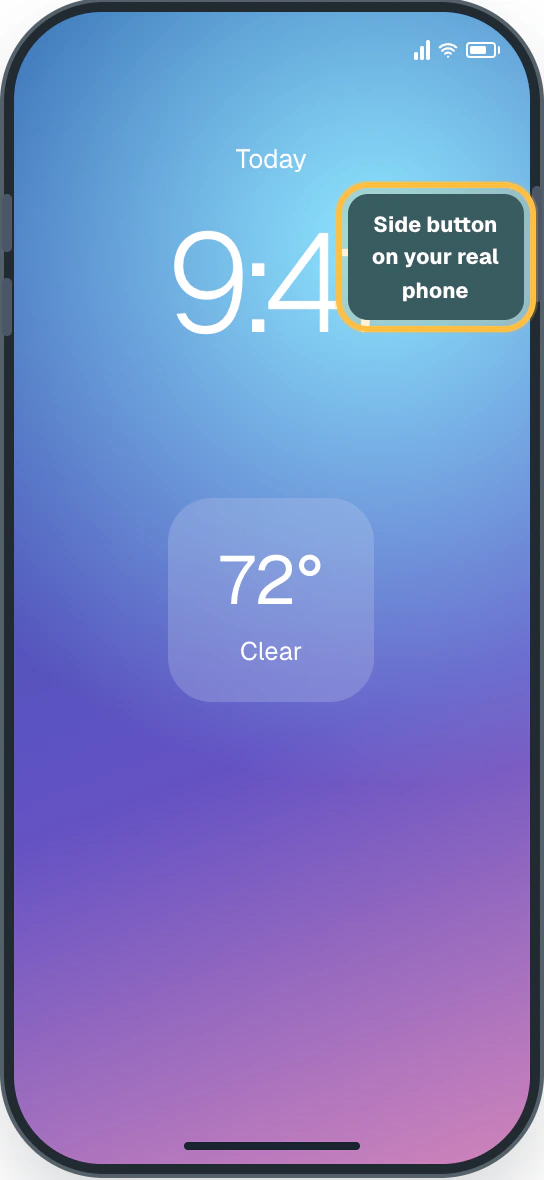
Step 1Wake the screen
Press the side button once, or tap the screen.
You should now see: The Lock Screen lights up.
 Easy Phone Tech visual example. Personal details are fictional; exact wording can vary.Open a larger picture
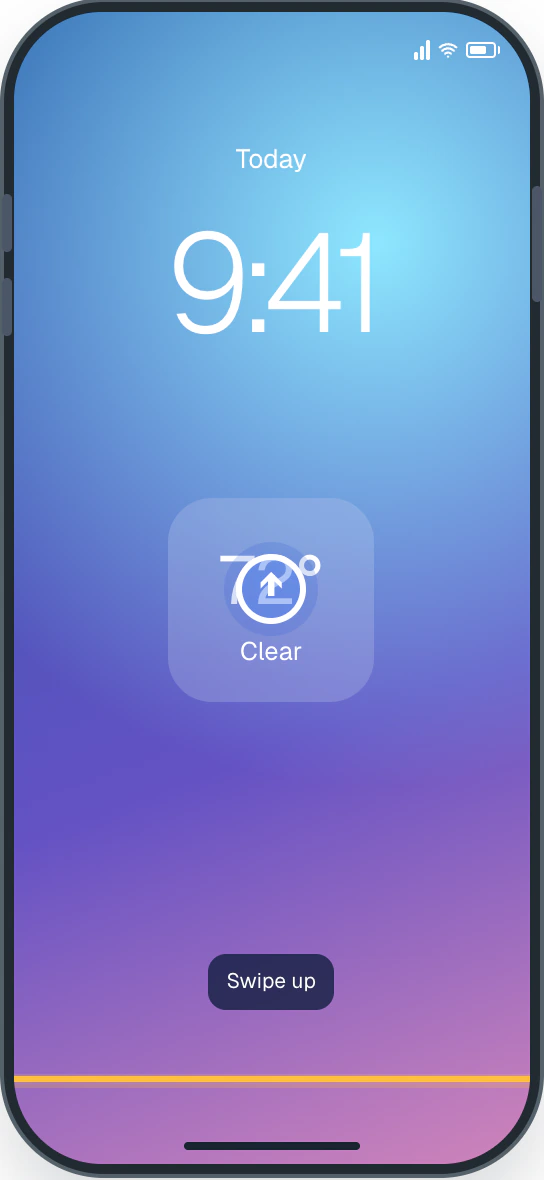
 Step 2Unlock
Look at the phone, then swipe up from the bottom edge.
You should now see: Your Home Screen appears.
 Easy Phone Tech visual example. Personal details are fictional; exact wording can vary.Open a larger picture
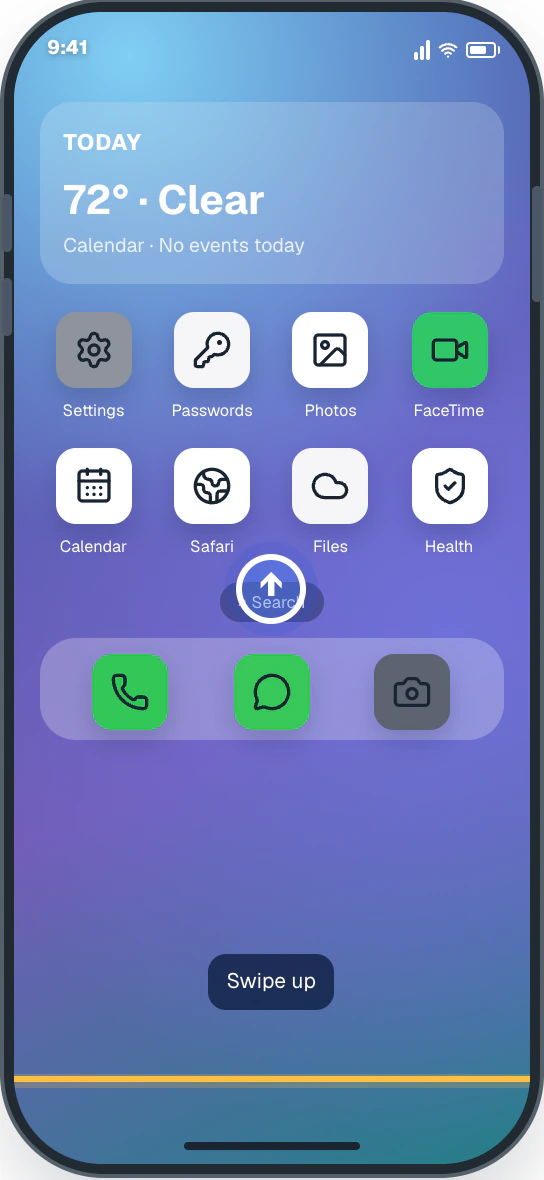
 Step 3Remember this move
From inside any app, swipe up from the bottom edge to come Home.
You should now see: The Home Screen remains visible, with your apps ready to open.
 Easy Phone Tech visual example. Personal details are fictional; exact wording can vary.Open a larger picture
My screen looks different
That is normal. Phone makers sometimes move or rename a setting.
- Stay with the task “Unlock your iPhone and go Home” and re-read the current action before tapping anything else.
- If the named control is missing, open the official source below or search for a different task.
Open the official help page Sources and review details
Modern full-screen iPhones · iOS 26 · Reviewed August 31, 2026
Step images are original Easy Phone Tech visual examples based on the cited paths. They are not manufacturer screenshots.
Check the result
Did this solve it?