Read it and see it together
Interactive visual guide
Use Next when you are ready. Replay repeats the visual cue; nothing advances without your choice unless you start Play through.
Do this now
Show controls
Tap the screen once during the call.
This original visual follows the verified path. Labels can vary slightly by model, region, carrier, or device state.
Show written steps
- Show controls. Tap the screen once during the call. The microphone, camera, and end-call controls appear on the call screen.
- If they cannot hear you. Look at the microphone icon. Tap it only when it is crossed out; tapping a live microphone would mute you. The microphone icon is no longer crossed out.
- Raise the call volume. While the call is active, press the volume-up button on the side of the iPhone. The active call volume rises.
- Check connected headphones. If sound is still missing, disconnect headphones or a Bluetooth audio device and listen again. Sound returns to the iPhone speaker if another device was receiving it.
Watch it happen
Helpful video
The video is optional. For this safety-sensitive topic, it is available only through the clearly labeled direct YouTube link.
How to Fix FaceTime Audio Issue on iPhone
Published by Tech Analytic 360. Covers current basic audio checks. Begin with the short, safe written checks and avoid resetting settings unless Apple Support directs you.
Watch directly on YouTube For safety, this tutorial is direct-link-only and is not embedded on this page.One small goal at a time
Follow the steps
Read one step, try it on your phone, then move to the next.
- Step 1
Show controls
Tap the screen once during the call.
You should now see: The microphone, camera, and end-call controls appear on the call screen.
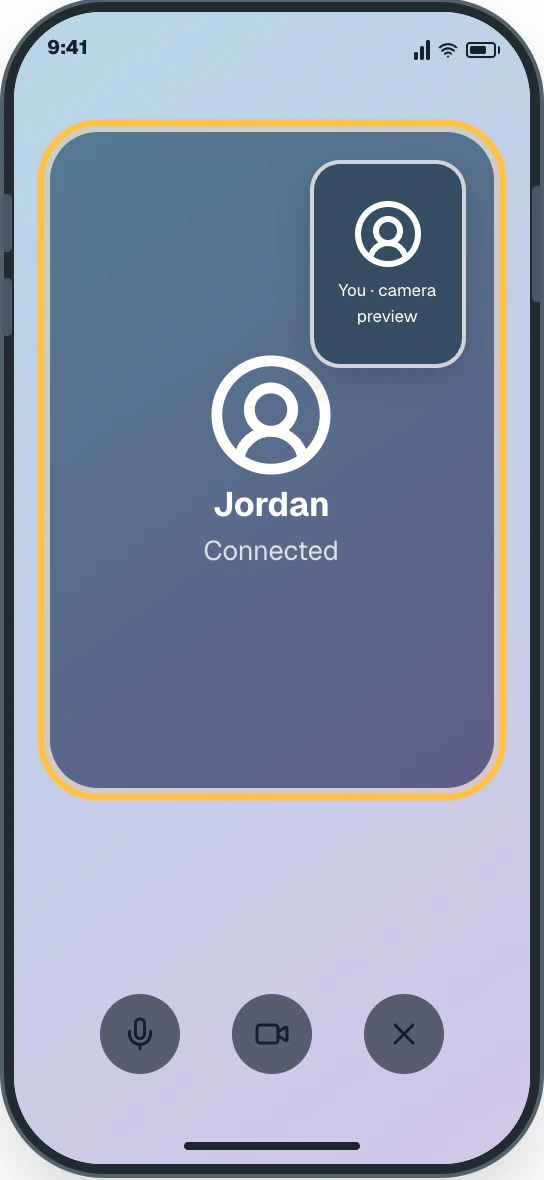
Easy Phone Tech visual example. Personal details are fictional; exact wording can vary. Open a larger picture - Step 2
If they cannot hear you
Look at the microphone icon. Tap it only when it is crossed out; tapping a live microphone would mute you.
You should now see: The microphone icon is no longer crossed out.
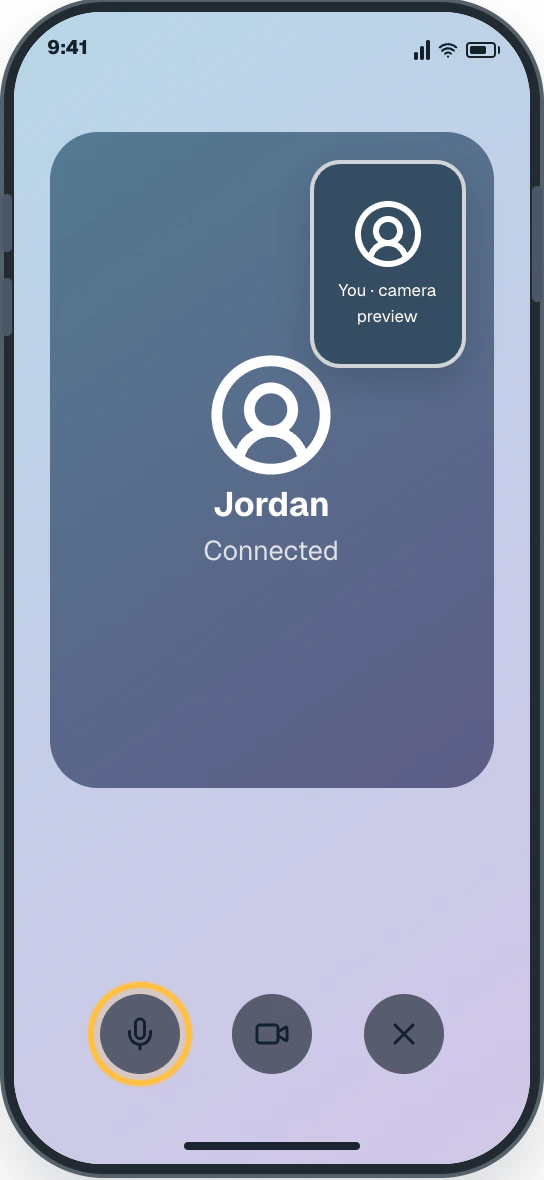
Easy Phone Tech visual example. Personal details are fictional; exact wording can vary. Open a larger picture - Step 3
Raise the call volume
While the call is active, press the volume-up button on the side of the iPhone.
You should now see: The active call volume rises.
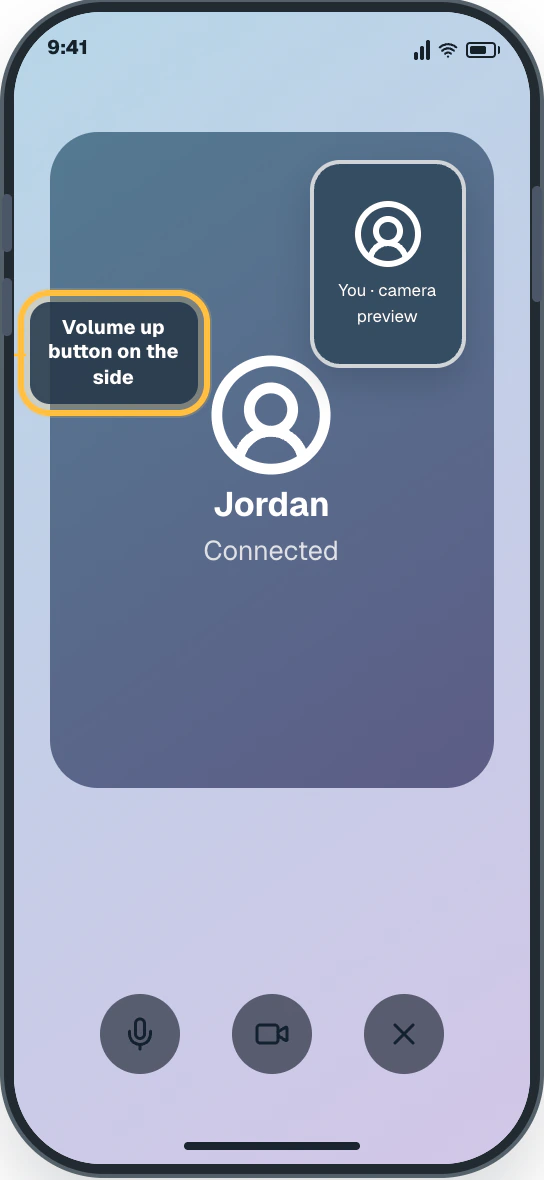
Easy Phone Tech visual example. Personal details are fictional; exact wording can vary. Open a larger picture - Step 4
Check connected headphones
If sound is still missing, disconnect headphones or a Bluetooth audio device and listen again.
You should now see: Sound returns to the iPhone speaker if another device was receiving it.
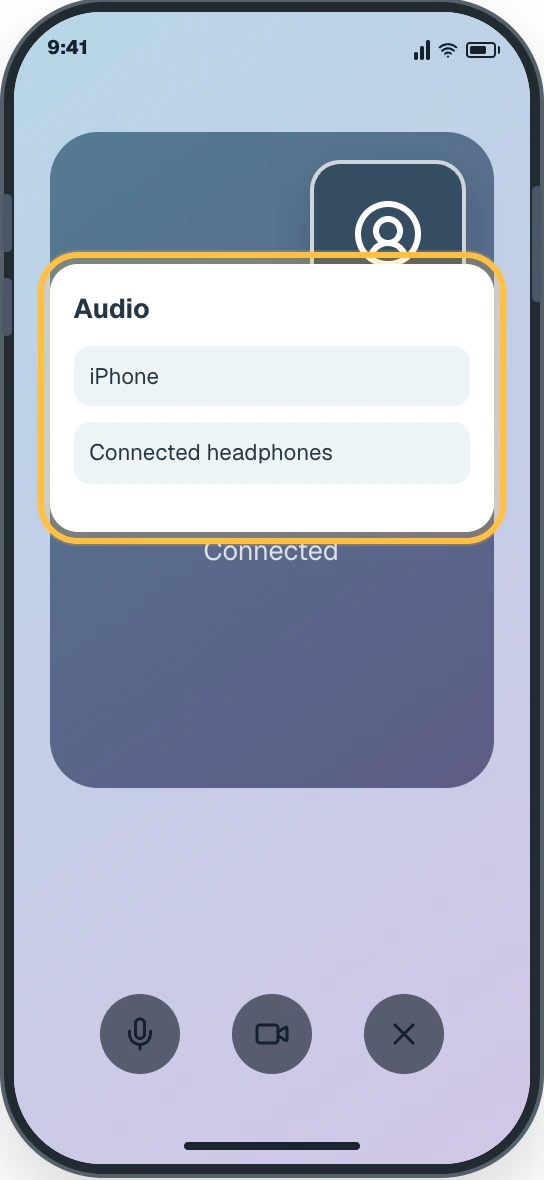
Easy Phone Tech visual example. Personal details are fictional; exact wording can vary. Open a larger picture