Read it and see it together
Interactive visual guide
Use Next when you are ready. Replay repeats the visual cue; nothing advances without your choice unless you start Play through.
Do this now
Open Camera
Tap Camera on the Home Screen.
This original visual follows the verified path. Labels can vary slightly by model, region, carrier, or device state.
Show written steps
- Open Camera. Tap Camera on the Home Screen. The live camera view appears with the white shutter button.
- Focus on the subject. Tap the person or object you want to be sharp, then hold the phone still. A focus box appears on the person or object you tapped.
- Take the photo. Tap the white shutter button once. A thumbnail of the new photo appears in the lower-left corner.
- See the picture. Tap the small preview in the lower-left corner. The new photo opens full screen.
- Check the picture. The photo opens full screen. Pinch outward only if you need to inspect a detail. You can see whether the picture is clear enough to keep.
Watch it happen
Helpful video
The video is optional. YouTube will not load until you choose Load video.
iPhone Tips for Seniors: Camera Basics
Published by Rich Bowlin. Shows opening Camera, taking a photo, and finding it in Photos. Some visuals are older, but the core controls remain recognizable.
Watch directly on YouTube If the video does not load here, the direct link opens the same tutorial on YouTube.One small goal at a time
Follow the steps
Read one step, try it on your phone, then move to the next.
- Step 1
Open Camera
Tap Camera on the Home Screen.
You should now see: The live camera view appears with the white shutter button.
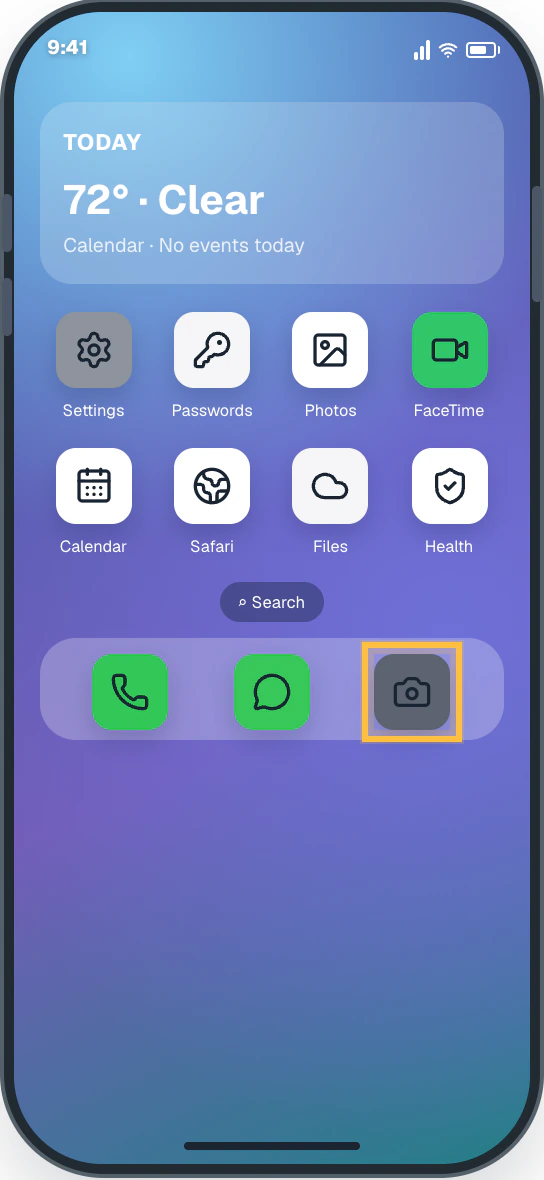
Easy Phone Tech visual example. Personal details are fictional; exact wording can vary. Open a larger picture - Step 2
Focus on the subject
Tap the person or object you want to be sharp, then hold the phone still.
You should now see: A focus box appears on the person or object you tapped.
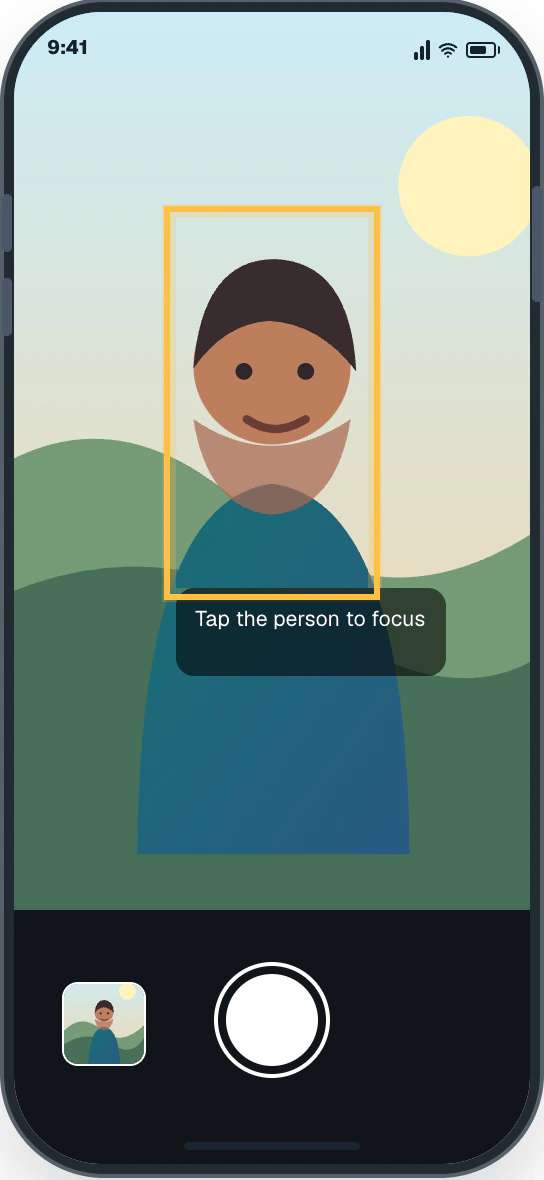
Easy Phone Tech visual example. Personal details are fictional; exact wording can vary. Open a larger picture - Step 3
Take the photo
Tap the white shutter button once.
You should now see: A thumbnail of the new photo appears in the lower-left corner.
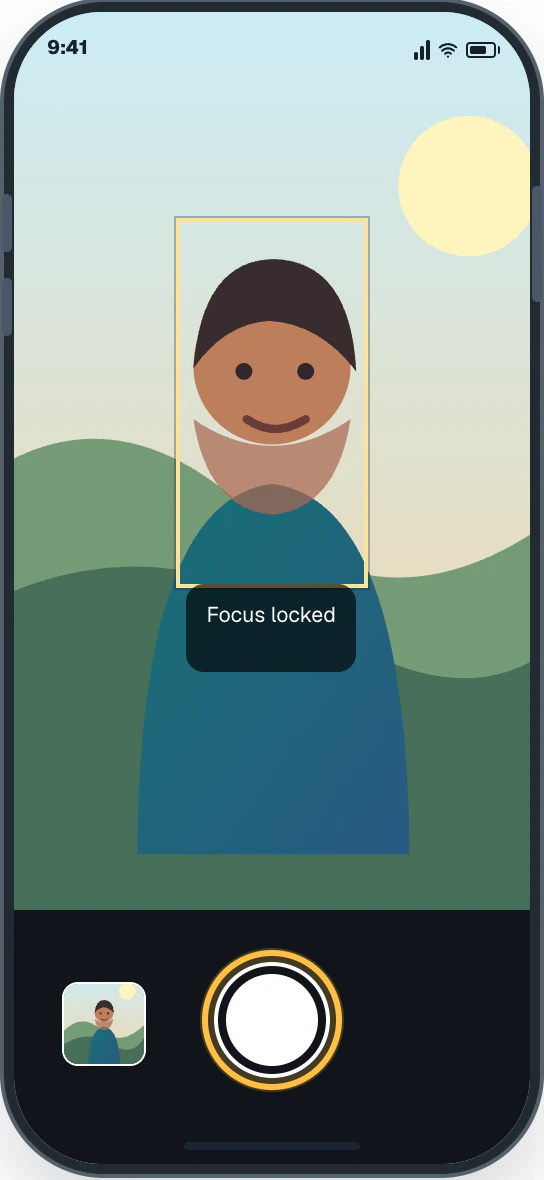
Easy Phone Tech visual example. Personal details are fictional; exact wording can vary. Open a larger picture - Step 4
See the picture
Tap the small preview in the lower-left corner.
You should now see: The new photo opens full screen.
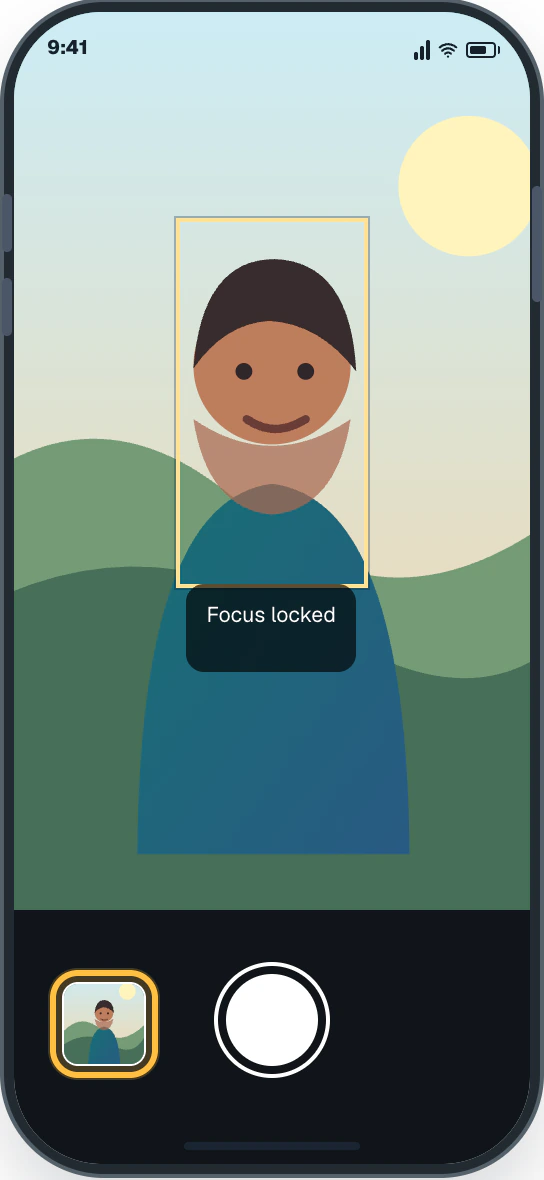
Easy Phone Tech visual example. Personal details are fictional; exact wording can vary. Open a larger picture - Step 5
Check the picture
The photo opens full screen. Pinch outward only if you need to inspect a detail.
You should now see: You can see whether the picture is clear enough to keep.
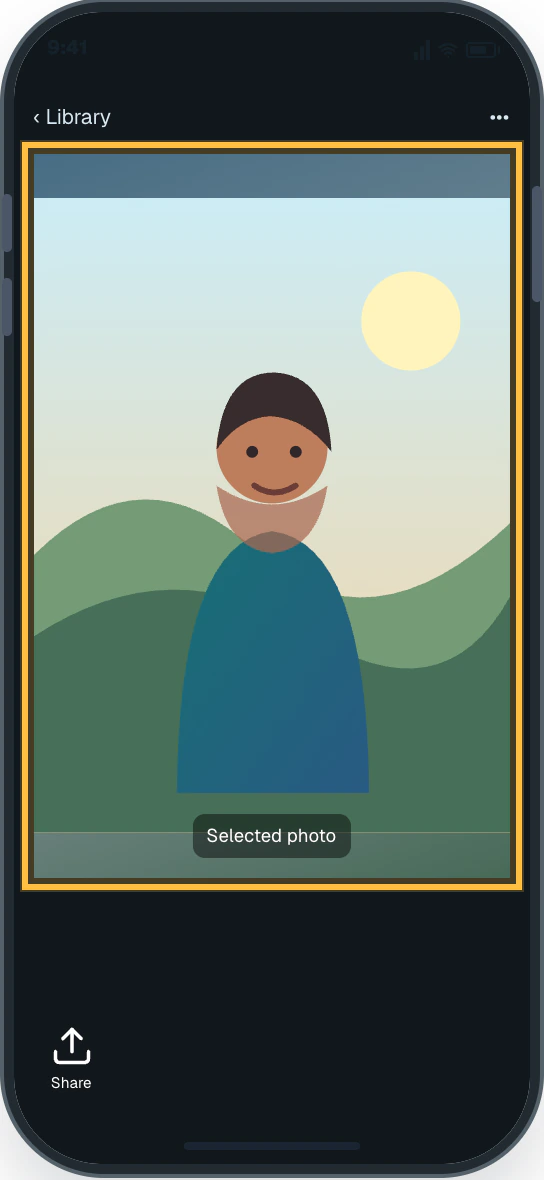
Easy Phone Tech visual example. Personal details are fictional; exact wording can vary. Open a larger picture