Interactive visual guide
Do this now
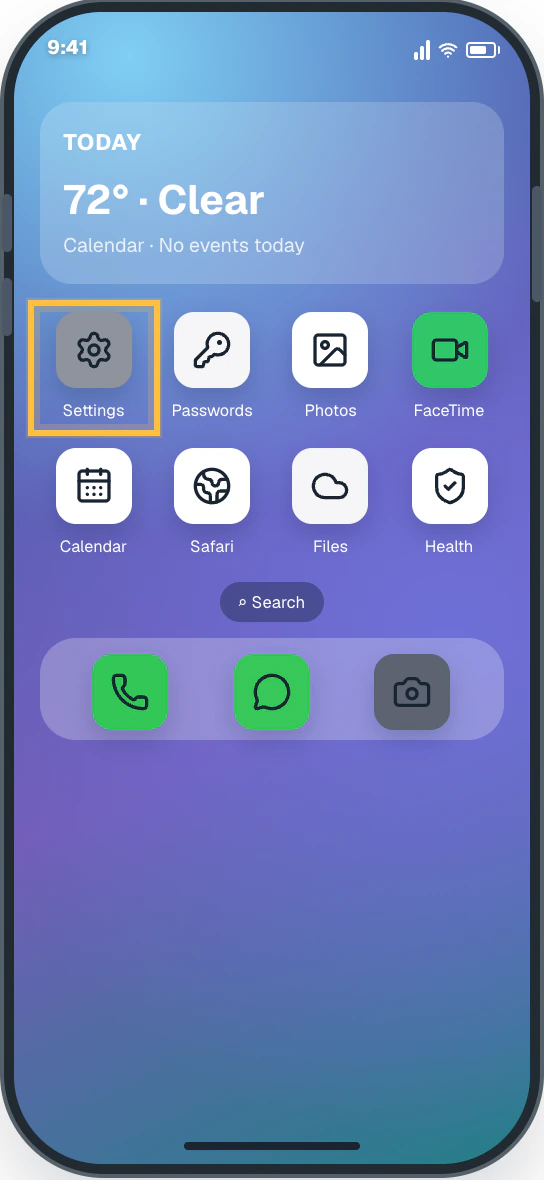
Open Settings
Tap the gray Settings icon on the Home Screen.
This original visual follows the verified path. Labels can vary slightly by model, region, carrier, or device state.
Show written steps
- Open Settings. Tap the gray Settings icon on the Home Screen. The main Settings list opens.
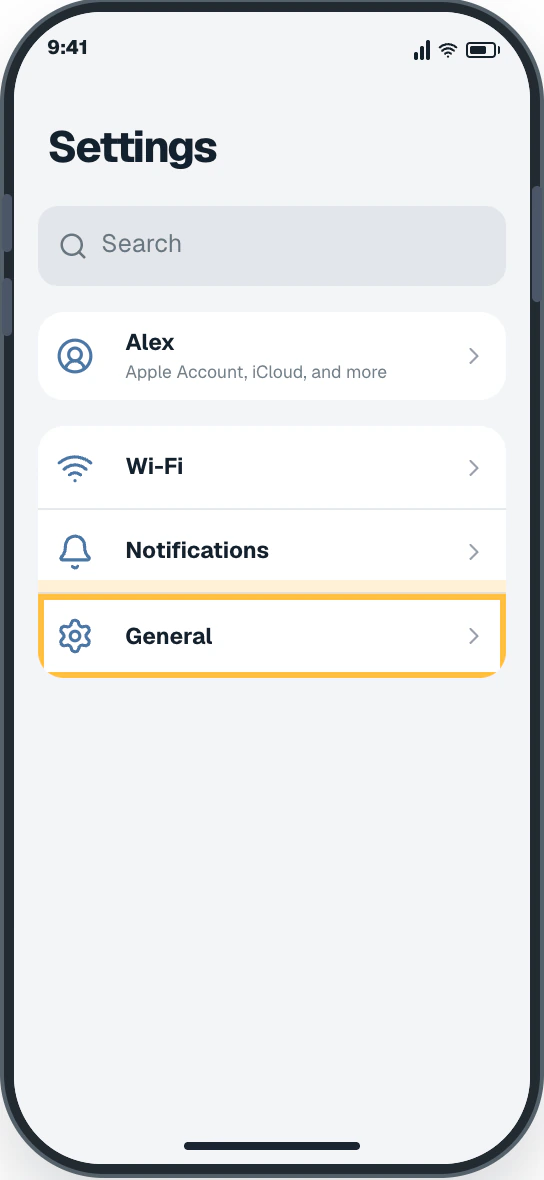
- Open General. Scroll down, then tap General. The General screen opens.
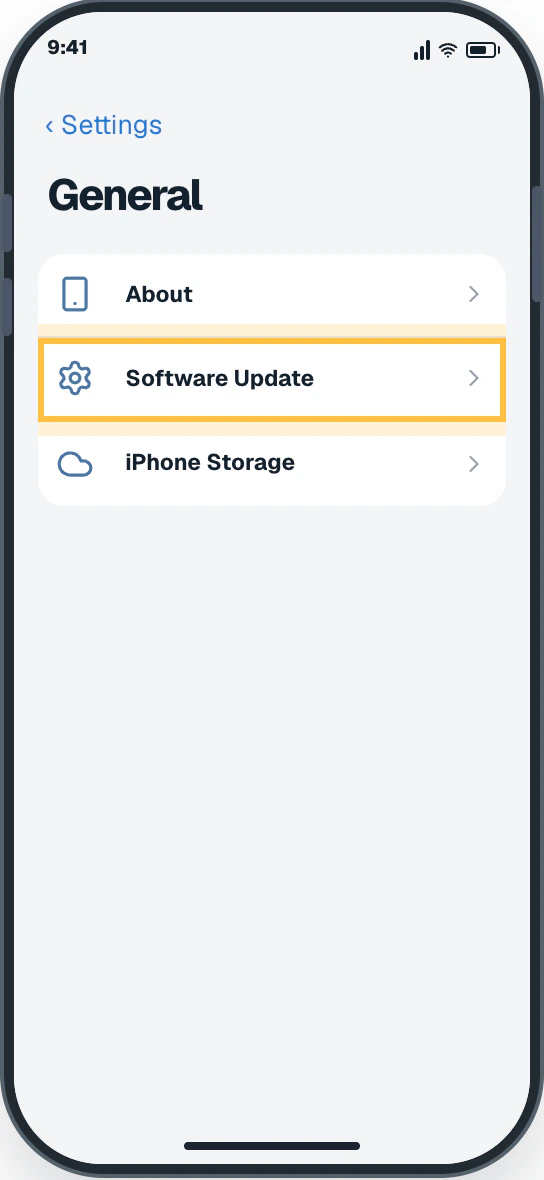
- Open Software Update. Tap Software Update. The Software Update screen opens.
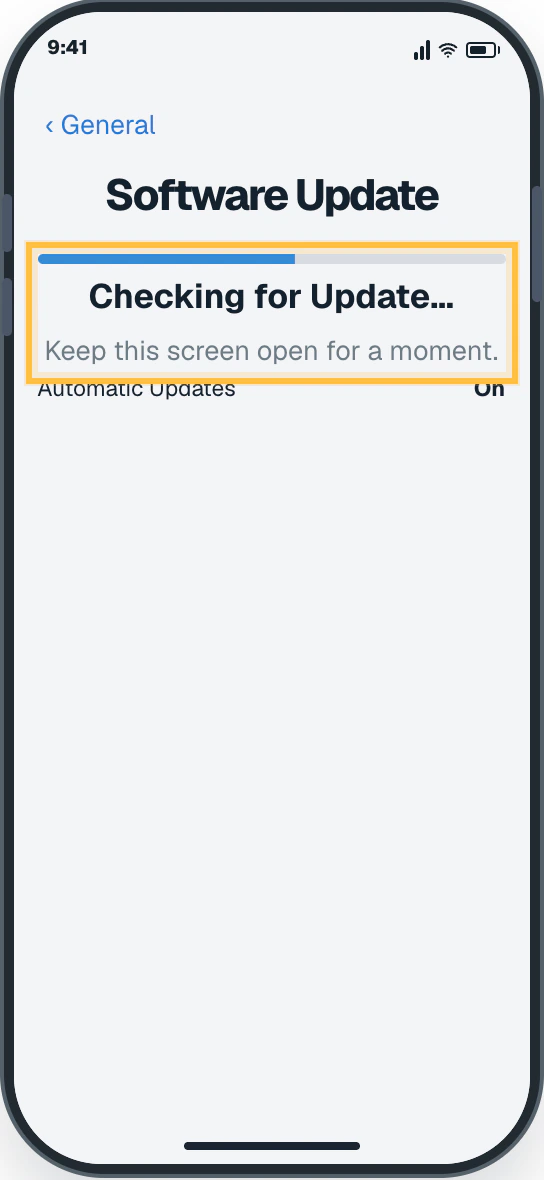
- Wait for the check to finish. Keep this screen open while the iPhone checks for the latest update offered to it. If the screen says the iPhone is up to date, stop—you are finished. If an update appears, continue.
- Review the update. Read the update details and make sure you have time for the phone to restart. The available update and a Download and Install button are visible.
- Start the update. When this screen shows Download and Install, tap it once. If your iPhone shows a different update button, use “My screen looks different” below before continuing. The iPhone asks for your passcode or begins preparing the update.
- Follow Apple’s prompts. Enter your iPhone passcode if asked. Keep the iPhone connected to power and Wi-Fi while it works. The iPhone may restart during installation. Wait until the Lock Screen returns before using it.
Watch it happen
Helpful video
The video is optional. YouTube will not load until you choose Load video.
How to update your iPhone
Published by Apple Support. Shows Apple’s official Settings, General, Software Update, and installation path.
Watch directly on YouTube If the video does not load here, the direct link opens the same tutorial on YouTube.iPhone · 7 clear steps
Follow the steps
Read one step, try it on your phone, then move to the next.
- Step 1
Open Settings
Tap the gray Settings icon on the Home Screen.
You should now see: The main Settings list opens.
Easy Phone Tech visual example. Personal details are fictional; exact wording can vary. Open a larger picture - Step 2
Open General
Scroll down, then tap General.
You should now see: The General screen opens.
Easy Phone Tech visual example. Personal details are fictional; exact wording can vary. Open a larger picture - Step 3
Open Software Update
Tap Software Update.
You should now see: The Software Update screen opens.
Easy Phone Tech visual example. Personal details are fictional; exact wording can vary. Open a larger picture - Step 4
Wait for the check to finish
Keep this screen open while the iPhone checks for the latest update offered to it.
You should now see: If the screen says the iPhone is up to date, stop—you are finished. If an update appears, continue.
Easy Phone Tech visual example. Personal details are fictional; exact wording can vary. Open a larger picture - Step 5
Review the update
Read the update details and make sure you have time for the phone to restart.
You should now see: The available update and a Download and Install button are visible.
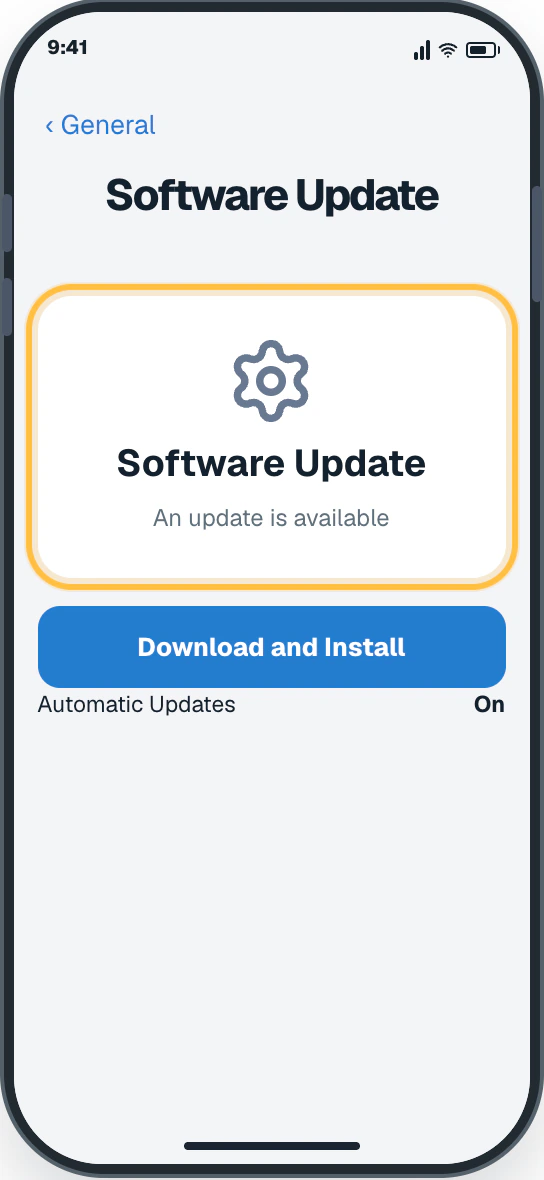
Easy Phone Tech visual example. Personal details are fictional; exact wording can vary. Open a larger picture - Step 6
Start the update
When this screen shows Download and Install, tap it once. If your iPhone shows a different update button, use “My screen looks different” below before continuing.
You should now see: The iPhone asks for your passcode or begins preparing the update.
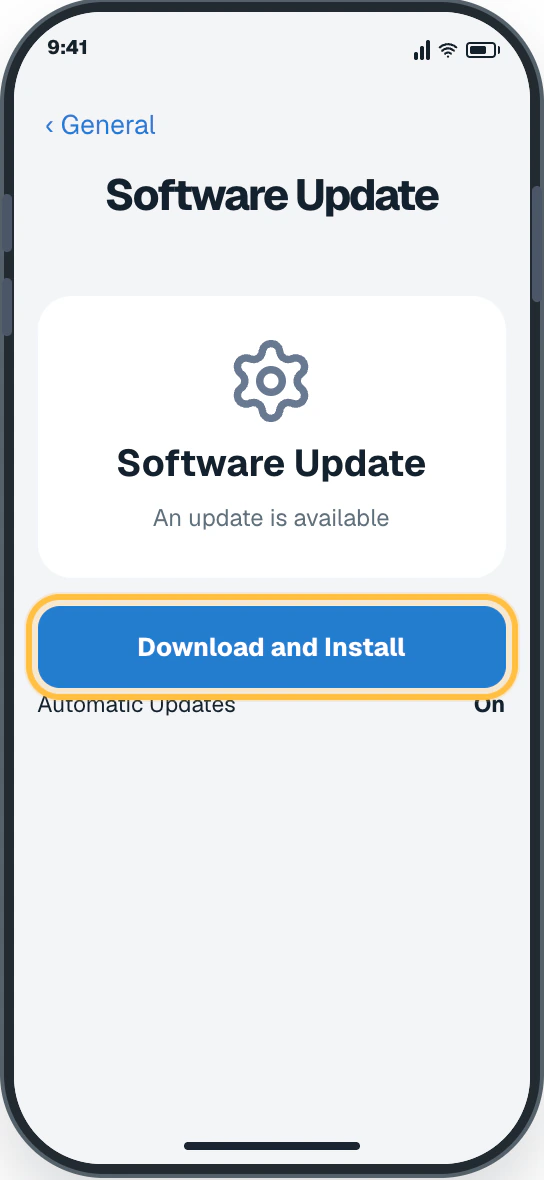
Easy Phone Tech visual example. Personal details are fictional; exact wording can vary. Open a larger picture - Step 7
Follow Apple’s prompts
Enter your iPhone passcode if asked. Keep the iPhone connected to power and Wi-Fi while it works.
You should now see: The iPhone may restart during installation. Wait until the Lock Screen returns before using it.
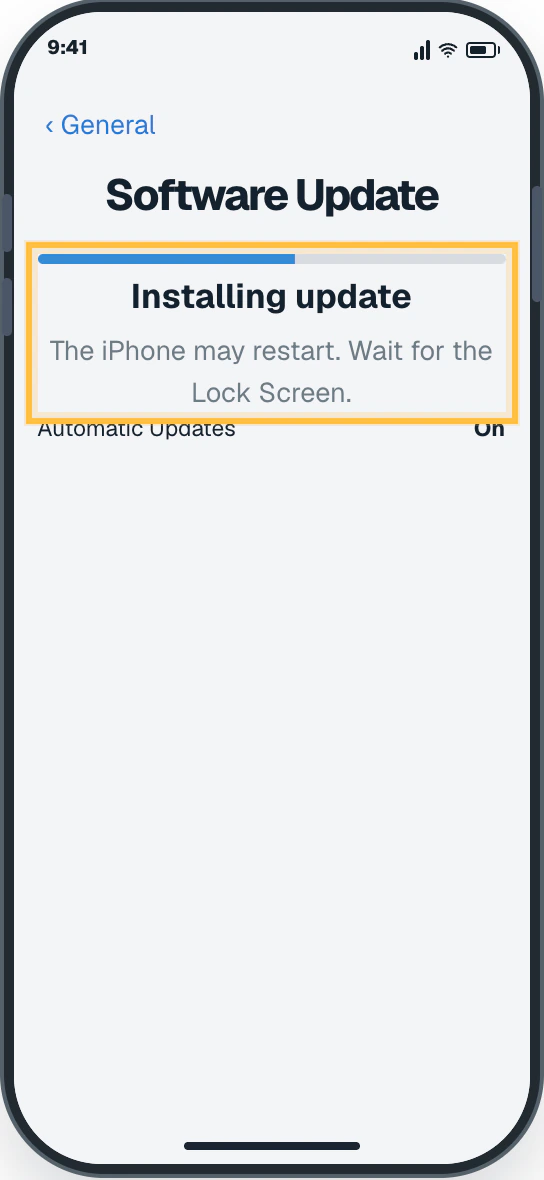
Easy Phone Tech visual example. Personal details are fictional; exact wording can vary. Open a larger picture